Your team writes architecture decisions, runbooks, and technical guides in Confluence. Developers want that knowledge in GitHub, where they can read it beside code and use it in their own tools. Manually exporting the same pages every week leaves someone responsible for the next refresh.
Conf2Git automates that refresh with a one-way mirror from a Confluence Cloud space to a dedicated GitHub branch. Authors keep editing in Confluence. You connect the destination, inspect the first sync, and then choose a schedule.
1. Choose a space and a GitHub destination
Start with a space whose content belongs with the intended GitHub audience. Confluence page restrictions are not reproduced as per-page permissions in GitHub, so review who can read the destination before exporting internal documentation.
The target branch must differ from the repository’s default branch. You also choose a non-empty folder within that branch. Here is an illustrative configuration:
| Setting | Example |
|---|---|
| Confluence space | Engineering |
| GitHub repository | Your organization’s internal documentation repository |
| Target branch | confluence-sync |
| Repository base path | confluence/engineering |
Treat the mirror as generated content. Correct a page in Confluence and sync again; later runs may replace edits made directly to managed files in GitHub.
2. Arrange access before installation
- Confluence Cloud site-administrator access and an accessible source space.
- An active Conf2Git licence or standard Marketplace evaluation.
- Someone authorized to install the Conf2Git GitHub App on the intended account or organization.
- Repository-administrator access for the person configuring the connection.
- A destination repository with at least one commit on its default branch.
If the repository is empty, initialize it in GitHub first. Conf2Git does not initialize or write to the default branch. The GitHub App requests repository Contents: read and write and Metadata: read; select only the repositories that should receive mirrors.
3. Install and verify the connection
- Install Conf2Git from Atlassian Marketplace and open its configuration as a Confluence site administrator.
- Install the Conf2Git GitHub App on the intended account or organization.
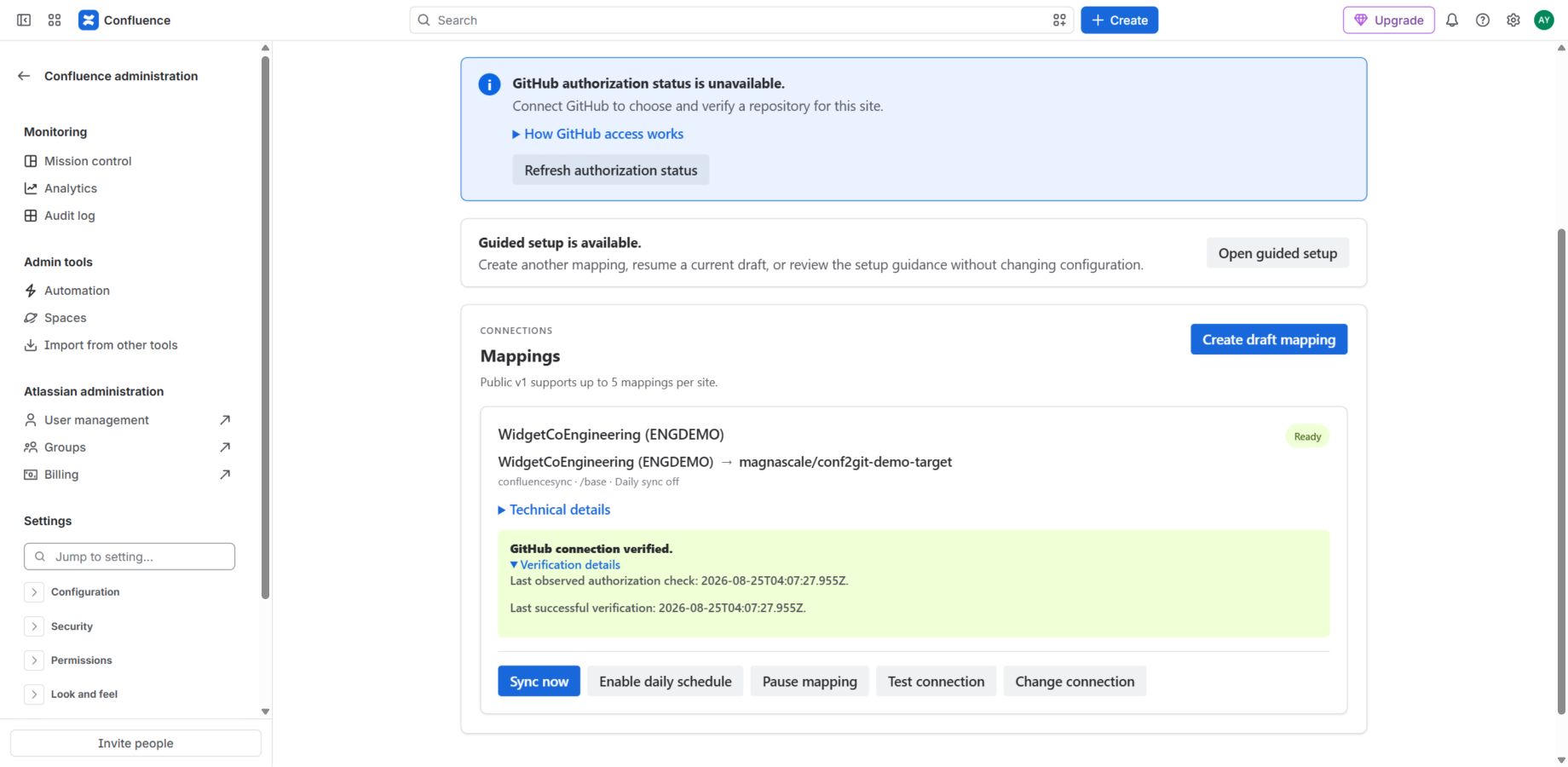
- Select Authorize GitHub in Conf2Git. This lets the administrator discover and verify repositories during setup; installing or authorizing the App does not start a sync.
- Create and save a draft mapping with the space, repository, dedicated target branch, and base path.
- Open Configure connection, select the returned installation and repository, and choose Test candidate without activating.
- After a successful test, select Activate tested binding. A saved draft alone cannot synchronize.
The customer setup guide provides the full permission and connection instructions.
4. Run the first sync and inspect the files
On the ready mapping, select Sync now. Follow progress in the mapping overview, then inspect the completed run, warnings, and recorded GitHub commit.
Native OKF output uses page.md inside a directory ending in the stable Confluence page ID. Older Markdown output used index.md. The example below uses the native format; use the output path recorded for your run when inspecting an existing mirror.
confluence/engineering/
├── .conf2git/
│   └── manifest.json
└── deployment-guide--123456/
    ├── page.md
    └── assets/
        └── [eligible referenced images]
This is an illustrative tree, not a captured customer export. Leave .conf2git/manifest.json intact: it records ownership of generated files. Read how Conf2Git uses OKF for the metadata carried with a page.
Check a page with code, one with internal links, and one with important tables or macros. Simple tables and code blocks are supported; complex layouts can flatten, and dynamic or included content can become text, links, or placeholders. Only supported referenced images are mirrored, rather than every attachment. Review the conversion guide alongside any warnings.
5. Enable automatic refresh
New mappings start with scheduling disabled. After verifying the first mirror, open Edit schedule, choose Daily, Weekly, or Monthly, set the timezone and local time, review the upcoming runs, and save.
Saving does not start a sync immediately. Conf2Git checks schedules hourly; platform delays, active work, licensing, or access problems can delay execution. The selected time is not a completion deadline. Check run history to see what happened, and use Sync now when you need an independent refresh. See the schedule guide for missed runs and clock changes.
6. Check the tool that will consume the mirror
A checkout or integration that reads only the default branch will not see the generated files. Point it at the mirror branch and folder, then ask it to locate a known page. For an example, follow the AI coding-agent workflow.
You now have a repeatable documentation mirror. Keep separate backup and recovery controls: the mirror follows source changes and does not preserve a complete Confluence backup.
Ready to try it? Start a Marketplace evaluation with one suitable space. If you are still choosing an approach, compare CLI exporters, export apps, and scheduled sync.